


Problem
How do I create a report based on filters in QFM Web?
Resolution
To explain this process we are going to explain it via a worked example. We are going to create a report which we will be setup to pick up all events logged in the last month based on two filters.
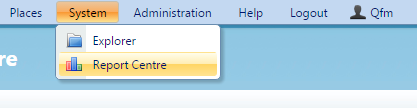
- To start you will need to navigate to ‘Report Centre.’

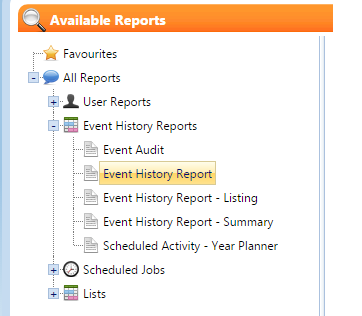
- Next you want to go into Reports > Event History Reports.

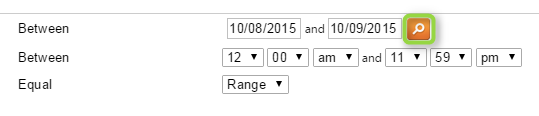
If you don’t have this option contact you your QFM administrator in order to enable it for your user. - You will now be presented with a blank report, it will automatically calculate to generate a month back from the current date.The first thing we want to setup is the date range, we will set it up to pick from the start of the last month to the end of last month. To do this you want to go into the date options, you get this via the magnifying glass.

You now want to pick the start of last month by picking start of the month and applying a -1 month offset. The same logic applies to the other date. You can setup pretty much any range of date here.

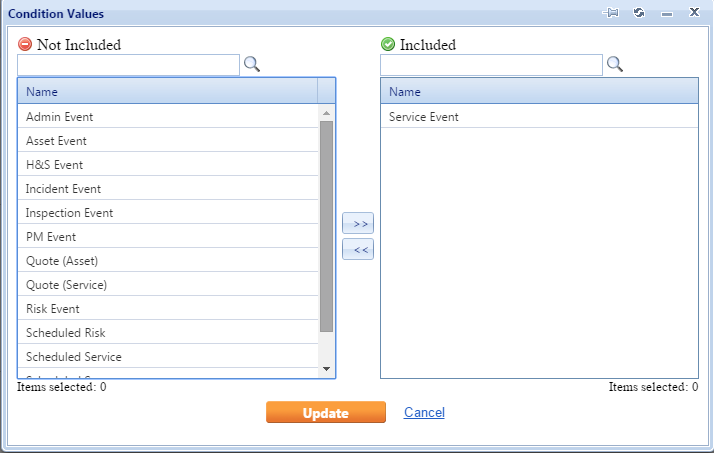
- Now we will add the two filters, In the example we will use ‘Event Type’ and ‘Site’. These will be filtered down to ‘Service Events’ and one site. You can add multiple values in the filters although we are only picking one value in this example.


- We have now completed the report, the final thing we will want to do is save the report so we can load it up in the future.