


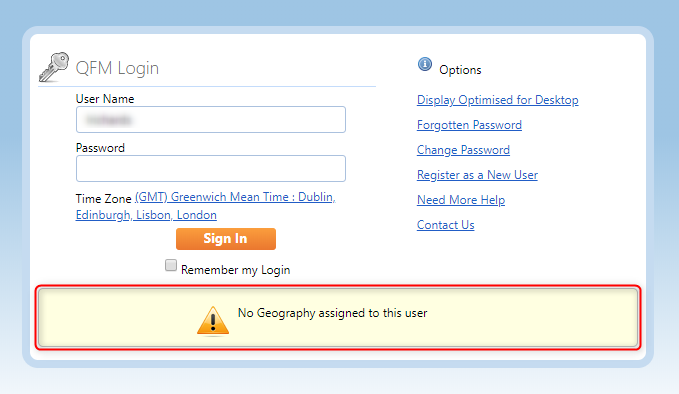
If a user encounters the system message “No Geography is assigned to this user” (as shown below) when attempting to log in to QFM, a QFM administrator must assign geography to the user.
This procedure describes how an administrator can assign the correct geography to a user.
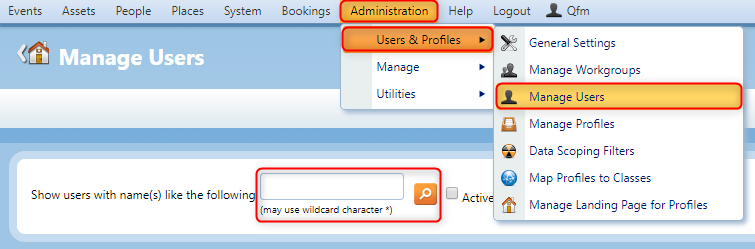
- To assign Geography to a User, go to Administration > Users & Profiles > Manage Users, and search for the user.

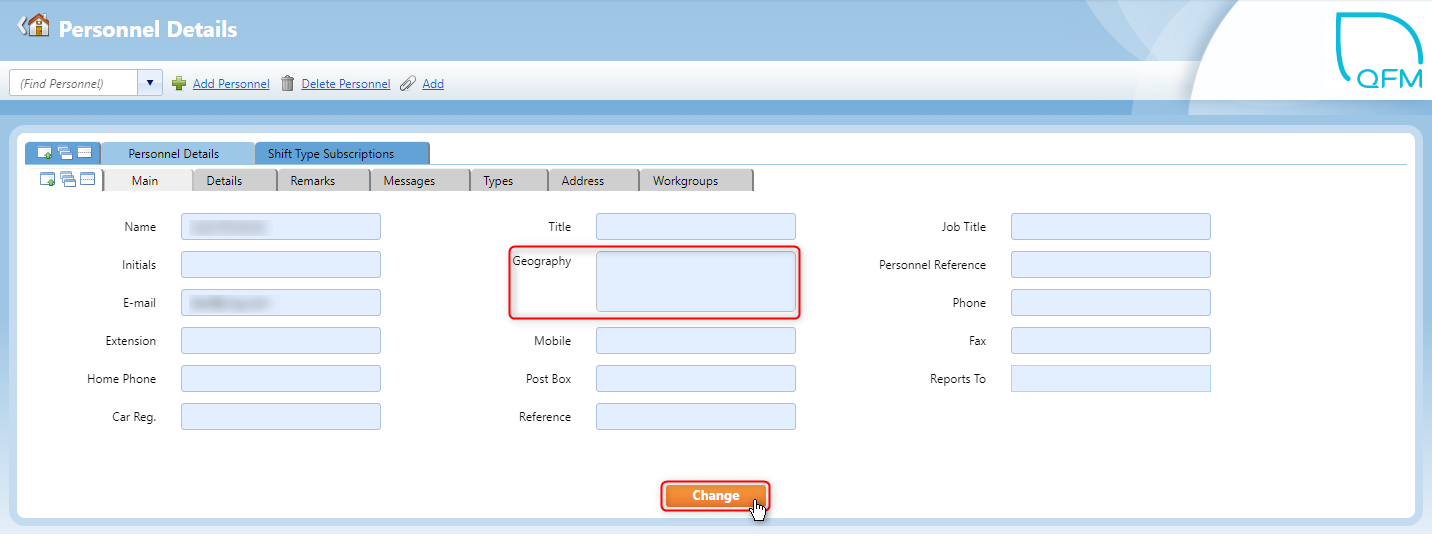
- Once you have located the user, select their Personnel Name to take you to their Personnel Details page.

- If the user has not been assigned Geography you can now do this by selecting Change, and using the
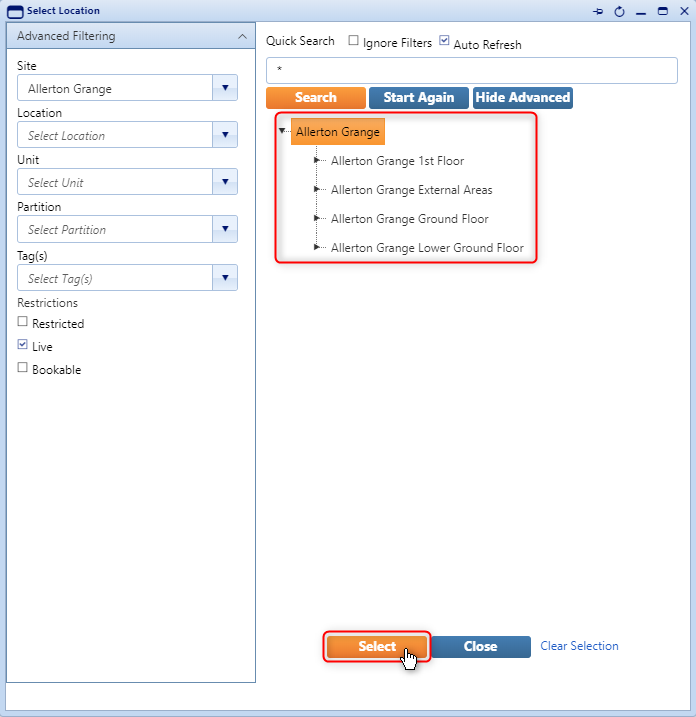
 icon to open the Select Location pop-up box.
Note: The orange icon will display once Change has been selected.

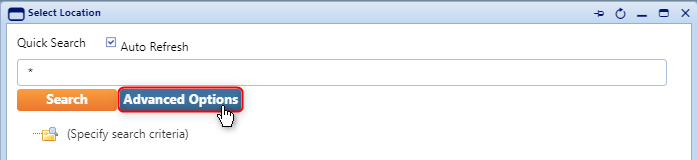
- Select Advanced Options within the Select Location pop-up box.

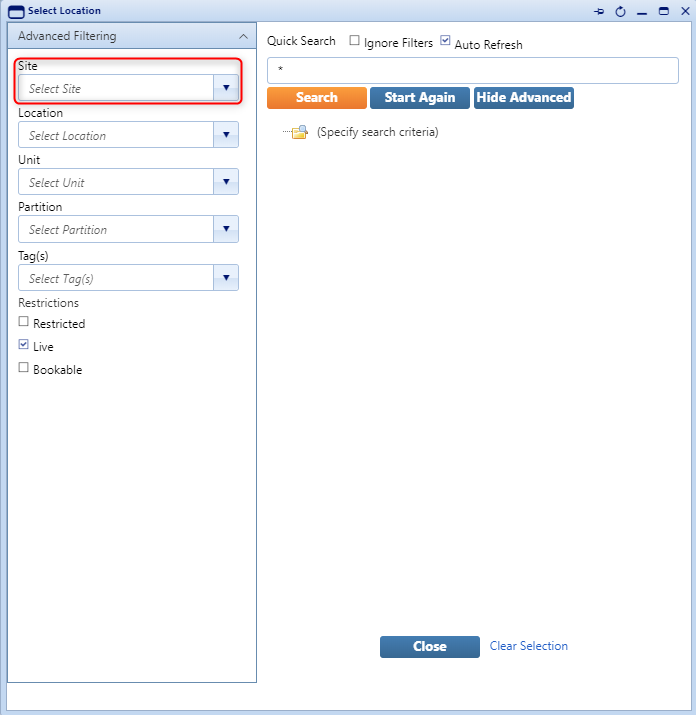
- Search for the Site you would like to assign to the user.

- Select the Site and then the Select button.

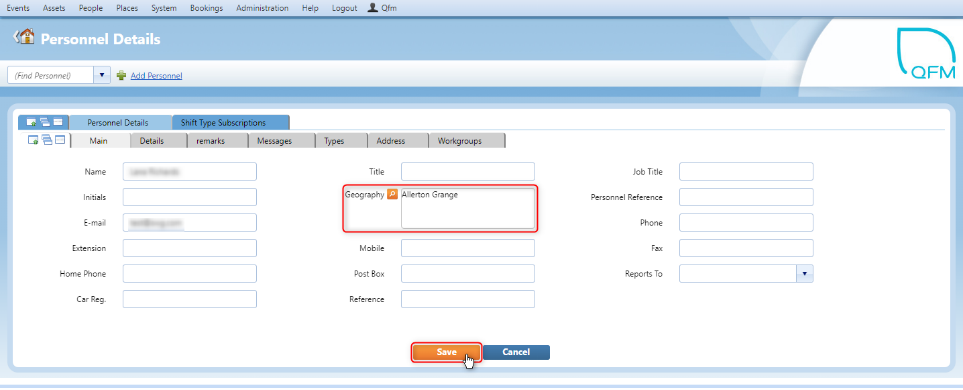
- The Geography should now be added to the user, as shown below.

- Select Save, and a notification will appear at the top of the screen to confirm that the Personnel has been updated, as shown below. The user should now be able to login successfully.